


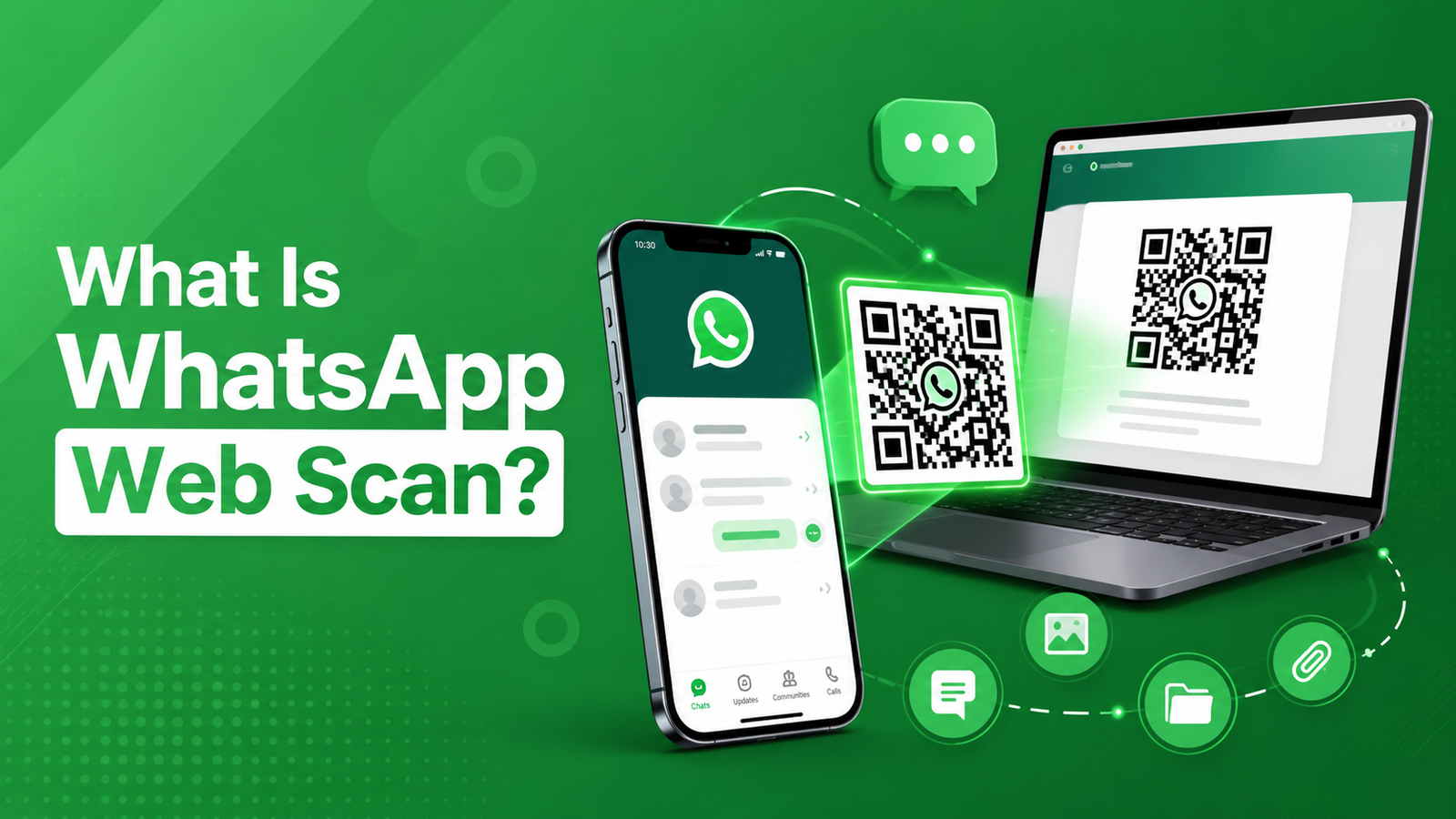
WhatsApp Web scan is a browser-based extension of the WhatsApp mobile application that lets you access your chats directly from a desktop or laptop. By connecting your phone to a web browser, you can send messages, share files, and manage conversations on a larger screen without constantly switching between devices.
To start using WhatsApp Web scan, you only need to scan a QR code with your smartphone. Within seconds, your chats will sync automatically, giving you a smooth messaging experience on your computer.
How Does WhatsApp Web Scan Work?
The WhatsApp Web Scan feature securely connects your mobile phone to your computer through a QR code. After scanning the code, your conversations, contacts, and media become available in your browser, making it easier to communicate while working or studying.
Steps to Connect WhatsApp Web
- Open your preferred web browser on your computer.
- Visit web.whatsapp.com.
- Launch WhatsApp on your smartphone.
- On Android, tap the three-dot menu and choose Linked Devices. On iPhone, open Settings and tap Linked Devices.
- Tap Link a Device.
- Scan the QR code displayed on your computer screen.
- Once the code is verified, your WhatsApp account will instantly appear in the browser.
You can now send and receive messages directly from your computer without interrupting your workflow.
What Is WhatsApp Web?
WhatsApp Web scan is the desktop browser version of WhatsApp that allows users to access their chats without installing additional software. It mirrors your conversations in real time, ensuring every new message, photo, video, or document appears on both your phone and computer.
This feature is especially useful for professionals, students, and anyone who spends long hours working on a desktop.
Main Features of WhatsApp Web
WhatsApp Web scan includes many of the same features found in the mobile application.
Instant Messaging
Reply to personal or group conversations quickly using your computer keyboard.
Share Files Easily
Upload and send images, videos, documents, PDFs, and voice recordings directly from your computer.
View Shared Media
Open photos, videos, documents, and other files without switching back to your phone.
Desktop Notifications
Receive instant message notifications on your computer so you never miss important conversations.
Multi-Device Support
Access WhatsApp from different computers by linking your account whenever needed.
Benefits of Using WhatsApp Web
Faster Typing
A full-size keyboard makes typing long messages much faster and more comfortable.
Better Productivity
You can respond to messages while working on documents, emails, or other tasks without constantly checking your phone.
Easier File Management
Uploading, downloading, and organizing files is much simpler when using your computer.
Large Display
Viewing conversations, images, and shared documents is more convenient on a bigger screen.
Is WhatsApp Web Safe?
Yes. WhatsApp Web uses the same end-to-end encryption technology as the mobile application. Your chats remain private, and only you and the recipient can read your messages.
For additional security:
- Always log out after using a shared or public computer.
- Only scan QR codes from the official WhatsApp Web website.
- Never allow unknown people to access your linked devices.
Common WhatsApp Web Problems and Solutions
QR Code Won’t Scan
- Refresh the browser page.
- Clean your phone’s camera lens.
- Increase your screen brightness.
- Hold your phone steady while scanning.
WhatsApp Web Is Not Connecting
- Make sure your phone has an active internet connection.
- Restart your browser.
- Reopen WhatsApp on your smartphone.
- Update WhatsApp to the latest version.
Messages Are Not Syncing
- Check both your phone and computer internet connections.
- Refresh the browser page.
- Log out and reconnect your device.
See Also: Best WhatsApp Last Seen Tracker APK
FAQs
What is WhatsApp Web Scan?
WhatsApp Web Scan is the process of scanning a QR code with your smartphone to securely connect your WhatsApp account to a computer browser.
Is WhatsApp Web free?
Yes. WhatsApp Web is completely free and only requires an active WhatsApp account.
Do I need my phone to use WhatsApp Web?
Yes. Your phone must be linked to your WhatsApp account. It should also have internet access to maintain proper synchronization.
Can I make voice and video calls?
Yes. Depending on your browser and operating system, WhatsApp supports voice and video calling from desktop devices.
Can I use WhatsApp Web on multiple computers?
You can link multiple devices to your WhatsApp account using the Linked Devices feature. Simply log in by scanning the QR code on each supported device.
Is WhatsApp Web secure?
Absolutely. WhatsApp protects all messages using end-to-end encryption, ensuring your conversations remain private.
Final Thoughts
WhatsApp Web is an excellent solution for anyone who wants to manage conversations from a desktop or laptop. By scanning a simple QR code, you can instantly synchronize your chats and enjoy a more comfortable messaging experience with a full-sized keyboard and larger display.
Whether you’re working in the office, studying, or simply prefer typing on a computer, WhatsApp Web helps you stay connected without constantly reaching for your phone. Remember to use the official WhatsApp Web website and log out after each session on shared computers to keep your account secure.